
WhatsApp Appointment Booking: How to Automate It (Step-by-Step Guide)
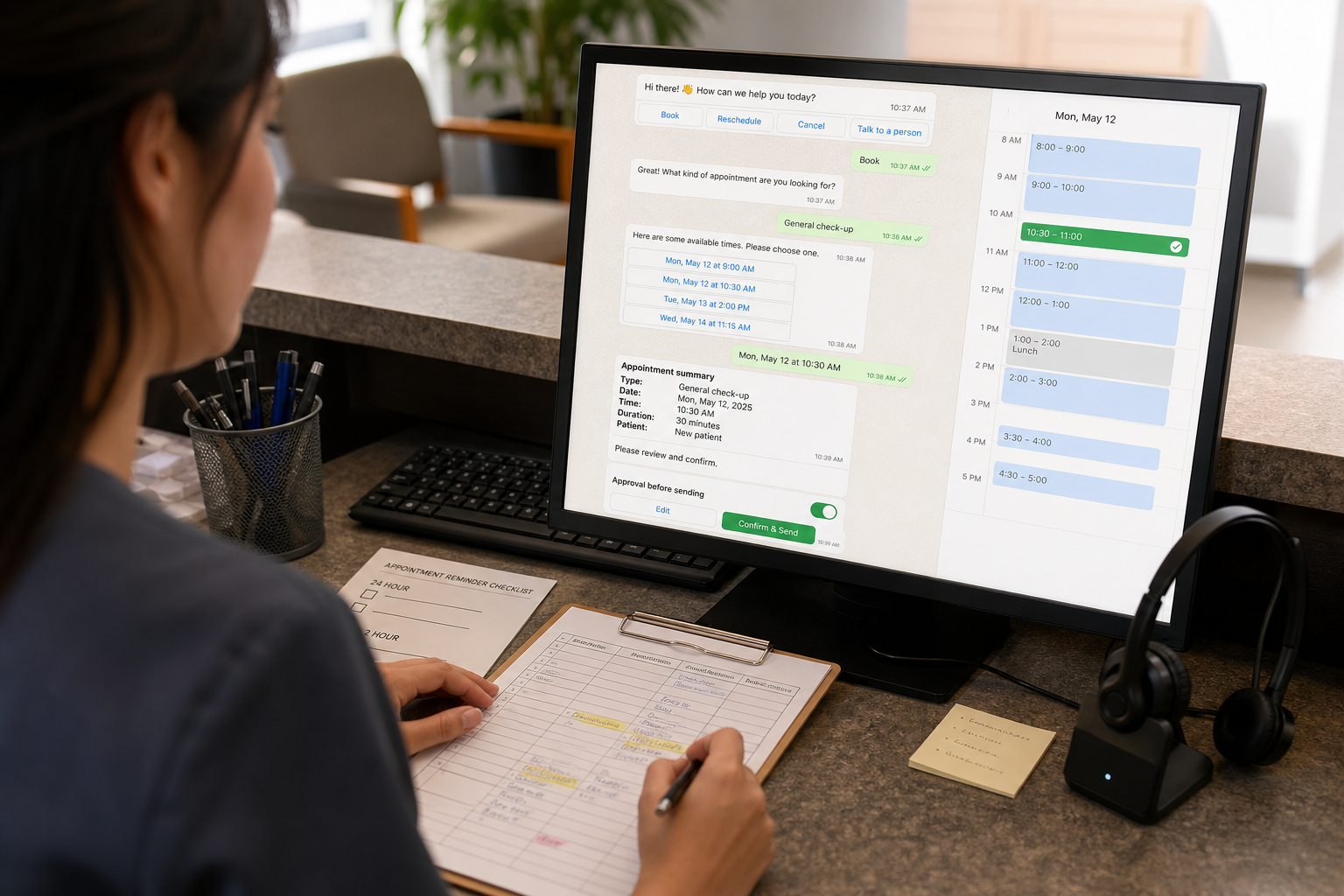
If your team is spending hours replying to “What times are available?” or chasing confirmations, WhatsApp Appointment Booking can act like a lightweight 24/7 receptionist. Done well, it reduces scheduling back-and-forth, confirms appointments faster, and automates reminders so fewer slots go to waste—without forcing customers to download yet another app.
Quick Answer (40–60 words): To automate WhatsApp appointment booking, map your booking workflow (service → availability → confirmation → reminders → reschedule/cancel), choose the simplest setup (link-based or conversational), connect a live calendar to prevent double bookings, and use approved WhatsApp message templates for confirmations and reminders. Add AI only if you need flexible conversation handling or lead qualification.
What Is WhatsApp Appointment Booking?
WhatsApp appointment booking is when customers can request and confirm an appointment directly inside a WhatsApp chat. With automation, the system can collect key details, show available slots, confirm the booking, send reminders, and handle rescheduling or cancellations with minimal staff involvement.
It helps to separate three levels of WhatsApp booking because many businesses jump straight to AI when they mostly need a reliable booking workflow.
Manual WhatsApp Appointment Booking
Staff chat with customers and manually check a calendar to find and confirm available appointment times. This approach is common in very small teams where messaging volume is low and scheduling rules are simple.
Assisted WhatsApp Appointment Booking
WhatsApp sends customers to a booking link or form, while the scheduling system handles availability and appointment confirmation. The conversation stays lightweight, and the booking system becomes the source of truth for available slots.
Automated Conversational WhatsApp Appointment Booking
A WhatsApp workflow or chatbot collects customer details, checks live availability, confirms the appointment, and triggers reminders and updates. This approach is useful when you want customers to book directly inside WhatsApp, need routing by service or provider, or want to automate rescheduling and cancellations.
The best starting point is rarely the most advanced option. Choose the setup that removes your biggest booking bottleneck while keeping operational risk and complexity manageable.
Why Automate WhatsApp Appointment Booking?
WhatsApp appointment booking can reduce the repetitive work involved in checking availability, confirming appointments, sending reminders, and handling basic rescheduling requests. In practical terms, it can improve operations in five ways:
- Faster response time — leads don’t wait for office hours or a call back.
- Less back-and-forth — fewer “what about Tuesday at 4?” loops.
- Fewer double bookings — when availability is pulled from a live calendar (instead of memory or spreadsheets).
- Fewer no-shows — confirmations and reminders can prompt customers to confirm, reschedule, or cancel early.
- Reduced admin load — staff focus on exceptions (special requests, complex cases, VIP clients) instead of repetitive scheduling.
Clinics and other appointment-based businesses often feel this most at the front desk: scheduling interruptions stack up quickly, and after-hours inquiries get lost or delayed.
Manual booking vs automated booking (quick comparison)
| Area | Manual WhatsApp booking | Automated WhatsApp booking |
|---|---|---|
| Speed | Depends on staff availability | Near-instant for common requests |
| Accuracy | Higher risk of errors/double booking | Lower risk when synced to a calendar |
| After-hours | Messages wait until opening hours | Bookings can happen 24/7 |
| No-show prevention | Reminders often inconsistent | Scheduled confirmations + reminders |
| Staff workload | High repetitive effort | Staff handle exceptions only |
How WhatsApp Appointment Booking Automation Works
Most successful WhatsApp booking automations follow a simple backbone. The details vary by industry, but the structure stays consistent:
- Entry point (customer starts chat): website button, QR code in-store, Click-to-WhatsApp ads, Instagram, or Google Business Profile.
- Qualification (collect minimum viable details): service type, preferred staff (optional), location (if multi-site), and timing preference.
- Slot selection: show available times from a live calendar (or route to a booking page that does).
- Confirmation: confirm the slot, capture name + contact details, and write the appointment into the calendar/CRM.
- Reminders: send reminders (commonly 24 hours and 2 hours before) with simple options: Confirm / Reschedule / Cancel.
- Updates: if the customer reschedules/cancels, update the calendar and optionally notify staff.
- Fallback to human: when the request is complex or sensitive, assign to staff with context.
This is the core idea: WhatsApp is the conversation layer. Your calendar and CRM are the source of truth. Automation is the glue that keeps them in sync.
Example WhatsApp Appointment Booking Workflow
The following example shows how WhatsApp appointment booking can move from the customer’s first message to a confirmed appointment, reminder, and rescheduling flow.
Customer: I want to book a consultation.
↓
WhatsApp automation: What type of consultation would you like?
↓
Customer: Initial consultation.
↓
Automation: I have these times available: 10:00 AM, 2:00 PM, and 4:30 PM. Which works best?
↓
Customer: 2 PM.
↓
Booking system: Checks live availability and creates the appointment.
↓
WhatsApp: Your consultation is confirmed for Friday at 2:00 PM.
↓
24 hours before: Reminder sent: “Your consultation is tomorrow at 2:00 PM. Reply CONFIRM, RESCHEDULE, or CANCEL.”
↓
Customer: Reschedule.
↓
Automation: Choose a new time: 1) 10:00 AM 2) 4:30 PM 3) Saturday at 11:00 AM.
↓
Customer: 1.
↓
Booking system: Updates the existing appointment rather than creating a duplicate.
↓
WhatsApp: Your consultation has been rescheduled to Friday at 10:00 AM. Your reminder has been updated.
The important point is that WhatsApp is the conversation layer, while the booking system or calendar remains the source of truth. The automation connects the two and keeps availability, appointments, confirmations, and reminders synchronized.
This workflow also makes troubleshooting easier. If the wrong slots are shown, check the calendar or scheduling-system connection. If the appointment is created but the confirmation is not delivered, check the WhatsApp messaging configuration and applicable template or messaging-window requirements.
Business-First AI Framework™ for WhatsApp Appointment Booking (use this before choosing tools)
Before you evaluate platforms, use a business-first lens so you don’t buy complexity you won’t maintain:
- Business problem: missed leads, slow responses, admin overload, no-shows.
- Workflow improvement: shorten booking time, standardize reminders, reduce calendar errors.
- Choose the right solution: start simple (links/templates) and add conversational automation only when needed.
- Implement with human oversight: clear handoff rules, audit logs, staff notifications.
- Measure business outcomes: response time, conversion rate, no-show rate, reschedules, staff time per booking.
- Standardize and scale: replicate across services/locations only after one flow works reliably.
Business-First AI Insight: Most small businesses don’t have an “AI problem” in scheduling—they have a workflow consistency problem. Calendar sync, short booking flows, and clear reschedule/cancel handling usually deliver the majority of ROI. AI becomes valuable later, when you need flexible conversation handling or lead qualification at scale.
What You Need to Automate Appointment Booking on WhatsApp
Before you start building, it helps to understand which pieces actually make up a WhatsApp appointment booking system. Most setups use five core components:
- WhatsApp Business / WhatsApp Business Platform — the messaging channel. The WhatsApp Business app works well for manual conversations and basic replies, while the Business Platform/API is typically used for automated workflows, integrations, and message templates.
- Booking or calendar system — the source of truth for availability and confirmed appointments. This could be Google Calendar, a dedicated scheduling tool, or a CRM calendar.
- Automation platform — connects WhatsApp with your calendar, CRM, and other systems and runs the booking workflow.
- Chatbot or AI layer (optional) — handles conversational booking, interprets natural-language requests, answers basic questions, and qualifies leads when needed.
- CRM or customer database (optional) — stores customer and lead records, tracks booking outcomes, and supports follow-up workflows.
You do not necessarily need all five components. A solo consultant with simple scheduling may only need WhatsApp + a booking page + calendar integration. A multi-staff clinic, agency, or service business may benefit from conversational automation, CRM integration, and more advanced routing.
The key is to start with the minimum setup that removes your biggest booking bottleneck. Add AI, CRM workflows, and other automation only when they measurably reduce staff workload or improve booking outcomes.
Choose Your WhatsApp Appointment Booking Setup
Once you know which components you need, choose the setup level that matches your booking goals, customer behavior, and operational needs:
- Link-based booking — WhatsApp entry points such as a website button or QR code send customers to a booking page that controls availability and appointment creation. This is best when your main goal is to reduce back-and-forth and you already have a scheduling page.
For example, Google Calendar appointment schedules can provide a booking page where customers can view available times and book an appointment. Google Calendar booking pages - Conversational booking — A WhatsApp workflow or chatbot collects the required details, checks live availability, shows available slots, confirms the appointment, and handles reminders or updates within the chat. This works well when you want customers to book inside WhatsApp or need routing by service, provider, or location.
- AI-assisted booking — An AI layer interprets natural-language requests, identifies booking intent, extracts details, answers basic questions, and routes customers when needed. This is most useful when customers frequently make flexible or ambiguous requests that are difficult to handle with fixed menus.
Start with the simplest setup that removes your biggest bottleneck. A booking link may be enough for a solo consultant, while a multi-staff business may need conversational booking with calendar and staff routing. Add AI only after the core workflow—especially calendar sync, confirmations, and reminders—is reliable.
Step-by-step: automate WhatsApp appointment booking (a practical build plan)
This tutorial is written to be tool-agnostic. The exact clicks differ by platform, but the implementation decisions are the same. The following steps show how to build WhatsApp appointment booking in a controlled way, starting with booking rules and calendar availability before adding more advanced automation or AI.
Step 1: Define your booking rules (keep it short)
Start by deciding what the system must know to book correctly. For many businesses, that’s:
- Service (e.g., consultation, follow-up, treatment type)
- Duration (15/30/60 minutes)
- Staff member (optional)
- Location (if multi-site)
- Customer name + contact details
- Notes (optional, short)
Implementation tip: Don’t ask for everything. Every extra question increases drop-off. If you need more data (especially in clinics), collect it after the slot is confirmed or route to a secure intake form.
Step 2: Choose your automation level (link-based vs conversational)
Use this decision logic:
- Start with link-based booking if your goal is “reduce back-and-forth” and you already have a booking calendar page.
- Use conversational automation if your goal is “book inside chat,” route by service/provider, or handle reschedules/cancellations without staff.
- Add AI scheduling only if customers ask in messy natural language (e.g., “any time after my school run next week”) and you want the system to interpret it reliably.
Step 3: Pick WhatsApp infrastructure: Business App vs Business API (Cloud API)
This is where many teams get stuck. The WhatsApp Business app is great for manual messaging and basic quick replies. True automation typically requires the WhatsApp Business API (often via WhatsApp Cloud API) and a platform to manage workflows and templates.
For businesses that need reliable WhatsApp appointment booking with calendar synchronization, automated reminders, routing, and status updates, an API-based setup is usually more flexible. The WhatsApp Business Platform is designed for businesses that need to communicate with customers at scale.
| Option | Best for | What you can automate | Key trade-off |
|---|---|---|---|
| WhatsApp Business App | Solo owners, very small teams | Quick replies, labels, basic organization | Limited true automation and integrations |
| WhatsApp Business API / Cloud API | Teams needing workflows + integrations | Automated flows, templates, routing, system messages | Setup complexity and ongoing management |
Rule of thumb: If you need calendar sync + automated reminders at scale, plan on API-based automation.
Step 4: Connect a live calendar (the “no double booking” foundation)
Calendar sync is the difference between “messages” and “booking automation.” Your automation should either:
- Read availability from a calendar/scheduling tool, then write confirmed appointments back, or
- Send users to a booking page that controls availability and confirmations, while WhatsApp handles messaging and reminders.
How the WhatsApp Booking Automation Architecture Works
A simple way to picture a WhatsApp appointment booking system is as a connected workflow:
WhatsApp → WhatsApp API → Automation Workflow → Booking System/Calendar → Confirmation → Reminder
Each component has a specific job:
- WhatsApp receives the customer’s request.
For example, a customer might message, “I want to book a consultation.” - The WhatsApp API passes the request to your automation workflow.
The workflow can use a chatbot or structured flow to identify the customer’s intent and collect the information needed to book. - The booking system checks live availability.
Instead of relying on information stored in the chat, the workflow checks the connected calendar or scheduling system for valid appointment slots. - The customer selects an available slot.
The automation shows a small number of valid options, such as three available times, rather than asking the customer to describe a time from scratch. - The booking system creates the appointment.
Once the customer confirms a slot, the system creates or updates the appointment record and writes it to the calendar or CRM. - WhatsApp sends the confirmation and reminders.
The customer receives the appointment details immediately, followed by scheduled reminders based on your workflow.
This sequence also makes troubleshooting easier. If the system shows incorrect availability, check the calendar or booking-system connection. If the appointment is created correctly but the confirmation does not arrive, check the WhatsApp messaging configuration, template requirements, and applicable messaging-window rules.
Implementation considerations:
- One source of truth: decide whether Google Calendar, a scheduling tool, or your CRM calendar is authoritative. For example, Google Calendar appointment schedules can provide a booking page, manage availability, and add booked appointments directly to the calendar. Google Calendar can also check calendars for availability to help prevent scheduling conflicts.
- Buffer times: add buffers between appointments where needed (common in clinics and on-site services).
- Time zones: critical for consultants/agencies with remote clients.
- Staff calendars: if customers choose a provider, availability must be provider-specific.
Step 5: Build the WhatsApp Booking Conversation (minimum viable flow)
A practical minimum viable booking conversation should guide customers through a few clear decisions:
- Greeting + intent: “Book / Reschedule / Cancel / Ask a question.”
- Service selection: Offer 3–7 clear options instead of a large menu.
- Collect constraints: Ask for a preferred day or time window and staff preference, if needed.
- Prepare for slot selection: Tell the customer that the system will check available times.
- Confirm the requested service and preferences: Make sure the system has the information needed to find the right appointment.
Why this structure works: It reduces cognitive load and keeps the conversation focused. Customers provide only the information needed to find an appointment instead of completing a long intake process before seeing available times.
Step 6: Check Availability Automatically
WhatsApp appointment booking should always check availability against a live calendar or scheduling system, not memory, spreadsheets, or hard-coded time slots.
Your automation should:
- Query the connected calendar for valid slots based on service, appointment duration, staff, and location.
- Apply booking rules such as working hours, buffers, blackout dates, and staff availability.
- Return only valid options to the customer, ideally 3–5 times at a time.
- Recheck availability before creating the appointment so a slot that was taken moments earlier is not accidentally booked.
If availability looks incorrect, check the calendar connection, staff availability, booking rules, and time-zone settings before changing the conversation flow.
Step 7: Confirm the Appointment
Once the customer selects an available slot, the system should:
- Create or update the appointment record in the booking system or CRM.
- Write the appointment to the authoritative calendar such as Google Calendar, a scheduling platform, or a CRM calendar.
- Send an immediate confirmation with the service, date, time, and location or meeting link.
- Store the appointment status so future reminders, cancellations, and rescheduling actions reference the correct appointment.
Confirmation is the point where the conversation and transactional systems must agree. The details in WhatsApp should match the actual calendar record.
Step 8: Send Appointment Reminders
Reminders help customers remember their appointments and give them an opportunity to make changes before the scheduled time.
A common reminder pattern is:
- Instant confirmation immediately after booking.
- Reminder 1: around 24 hours before the appointment, giving the customer time to reschedule if needed.
- Reminder 2: around 2 hours before the appointment to reduce last-minute forgetfulness.
- Optional follow-up: after the appointment for a review request, rebooking prompt, or other appropriate follow-up.
What matters most is making it easy for customers to confirm, reschedule, or cancel so your calendar stays accurate.
If you use the WhatsApp Business Platform/API, configure reminder messages according to the applicable WhatsApp messaging and template requirements in your chosen platform. WhatsApp’s business messaging infrastructure has specific rules and requirements for business-initiated messaging, so check the current WhatsApp Business Platform documentation before implementing automated reminders.
Step 9: Automate Cancellation and Rescheduling
Treat cancellations and rescheduling as core booking flows, not edge cases.
Reschedule flow:
- Customer replies “Reschedule” or selects a reschedule option.
- System asks for a preferred day or time window.
- System checks live availability.
- System shows 3–5 available slots.
- Customer selects a new time.
- System updates the existing calendar event rather than creating a duplicate.
- System confirms the new appointment time and updates the reminders.
Cancel flow:
- Customer replies “Cancel.”
- System confirms the cancellation intent to prevent accidental cancellations.
- System updates the calendar or booking system.
- Staff are notified when appropriate.
- The system can optionally offer an easy way to rebook later.
Implementation tip: Always include a “Talk to a person” option. Some requests—such as complicated treatment schedules, unusual service requirements, or urgent changes—are better handled by staff.
Step 10: Add a Human Handoff Rule (non-negotiable for real businesses)
Automation should handle predictable booking tasks while humans handle exceptions. Define clear handoff triggers such as:
- Customer asks a complex question beyond the booking workflow.
- Customer repeatedly requests an unavailable time.
- Customer is flagged as a VIP or high-value lead.
- Multiple cancellations or reschedules occur in a short period.
- The conversation involves sensitive or compliance-related information.
- The automation cannot resolve the request after a few turns.
When handing off, send the staff member the relevant context—such as the customer’s request, selected service, preferred time, and conversation history—so the customer does not have to start over.
Consultant Insight: The fastest way to lose trust is to force customers into a loop. If the automation cannot resolve the issue after a few turns, escalate with context so staff can finish the job quickly.
Step 11: Track KPIs That Reflect Business Value (not chatbot activity)
Don’t measure success by message volume alone. Measure whether the booking workflow improves business outcomes:
- Median first response time — compare before and after automation.
- Booking conversion rate — WhatsApp conversations that become confirmed appointments.
- No-show rate — measure whether reminders are reducing missed appointments.
- Reminder confirmation rate — how many customers explicitly confirm.
- Reschedule rate — and whether rescheduled slots remain filled.
- Staff time per booking — estimate how much manual scheduling work has been reduced.
Use these metrics to identify where the workflow needs improvement. If customers frequently abandon the conversation, simplify the booking flow. If no-shows remain high, improve reminder timing or messaging. If staff still handle many repetitive requests, identify which parts of the workflow can be automated next.
How to Automate WhatsApp Appointment Booking With AI
AI can make WhatsApp appointment booking feel more natural, but it should not be responsible for every part of the workflow. A reliable setup separates the conversation layer, where AI can help interpret what the customer wants, from the transaction layer, where deterministic automation handles booking decisions and updates.
Where AI Helps
AI is particularly useful when customers do not follow a fixed booking script. It can help with:
- Understanding natural-language requests — for example, “Do you have anything Thursday afternoon?”
- Identifying appointment intent — recognizing whether the customer wants to book, reschedule, cancel, or ask a question.
- Extracting booking details — identifying services, dates, times, staff preferences, and other information from unstructured messages.
- Handling conversational variations — understanding different ways customers express the same request without requiring a large menu of options.
- Answering basic FAQs — providing information about services, opening hours, locations, preparation requirements, or other approved information before booking.
- Qualifying leads — collecting a small amount of information and routing customers to the appropriate service, provider, or booking path.
- Routing complex requests — recognizing when a conversation should be transferred to a human.
Where Traditional Automation Is Better
For actions that affect your actual appointment records, deterministic automation should remain in control. It is better suited for:
- Checking live availability from the booking system or calendar.
- Creating and updating appointments after the customer selects a valid slot.
- Enforcing booking rules such as appointment duration, buffers, business hours, and staff availability.
- Sending confirmations and reminders using the appropriate WhatsApp messaging configuration and templates.
- Applying cancellation and rescheduling rules consistently.
- Updating the CRM or customer database with confirmed appointment information.
- Preventing duplicate bookings by treating the booking system as the source of truth.
Key principle: Use AI for conversation and interpretation; use deterministic automation for booking decisions and transactions.
For example, AI can interpret a message such as “Can I come sometime Thursday afternoon?” and turn it into a structured request for Thursday afternoon. The booking system should then check the actual availability and return valid slots. Once the customer chooses a slot, the booking workflow—not the AI model—should create the appointment and update the calendar.
This approach gives you the flexibility of AI without allowing a language model to become the authority on availability or appointment records.
When Should You Add AI?
You probably do not need AI at the beginning if customers usually follow a predictable booking process. A structured flow can handle:
Service → Date → Available slots → Confirmation → Reminder
AI becomes more valuable when conversation variability becomes a genuine bottleneck—for example, when customers frequently use natural language, ask multiple questions before booking, need qualification, or require routing across different services or staff members.
A practical approach is to start with structured booking automation, prove that the workflow works reliably, and add AI where it measurably reduces staff workload or improves booking conversion.
Which setup do you need? (decision matrix)
If you’re unsure whether you need a dedicated platform, a CRM workflow tool, or a custom build, use this matrix:
| Scenario | Recommended approach | Why | Watch-outs |
|---|---|---|---|
| Solo consultant with simple availability | Link-based booking + WhatsApp quick replies | Fast to implement, low maintenance | Limited automation for reschedules/reminders at scale |
| Clinic front desk overloaded | WhatsApp booking platform with templates + calendar sync + reminders | Standardizes intake and reduces repetitive work | Compliance and sensitive messages need strict handoff rules |
| Agency running many discovery calls | CRM-driven WhatsApp flows (lead → booking → follow-up) | Tracks pipeline and improves speed-to-lead | Requires clean CRM processes or it becomes messy fast |
| Multi-staff business with different services and durations | Conversational booking workflow connected to staff calendars | Prevents double bookings and misrouted appointments | More setup: services, rules, buffers, staff routing |
| Custom requirements (unique rules, multiple systems) | Custom automation stack (e.g., automation platform + WhatsApp API + calendar) | Maximum flexibility and extensibility | Higher technical effort and ongoing maintenance |
Best tools for WhatsApp booking automation (business-focused comparison)
There isn’t one “best” tool for everyone. The right choice depends on whether you need structured workflows, a CRM-first approach, clinic-specific features, or a custom build.
| Tool | Best For | Ease of Use | Time to Value | Business Size | Notes |
|---|---|---|---|---|---|
| HighLevel | Agencies/consultants wanting CRM + booking flows | Medium | Fast if you already use a CRM | Small to mid-sized | Strong if your booking is part of a broader lead-to-client workflow |
| Respond.io | Teams needing structured WhatsApp workflows and routing | Medium | Medium | Small to mid-sized | Good for operational control across conversations and staff handoff |
| AiSensy | Clinics and medical centers running acquisition + booking journeys | Medium | Medium | Small to mid-sized | Often positioned for clinic workflows and Click-to-WhatsApp funnels |
| WhatAClinic | Clinics wanting a purpose-built WhatsApp receptionist layer | Low to Medium | Fast | Small clinics | Narrow focus can be a strength if you match the use case |
| n8n (custom build) | Custom workflows, technical teams, advanced routing/AI | High effort | Slower | Any (with capacity) | Most flexible; requires engineering/ops maturity |
| Infobip | Larger businesses or multi-location messaging needs | Medium | Medium | Mid-sized to larger | Established provider; evaluate fit and required integrations carefully |
Expert Verdict (what most small businesses should do first)
Expert Verdict: Most small businesses should start with a template-driven WhatsApp booking flow plus calendar sync and reminder automation before investing in a custom AI scheduling agent. You’ll usually capture most of the value (speed, fewer no-shows, fewer admin hours) with less risk and less maintenance. Move to AI only when conversation variability becomes your bottleneck.
How Much Does WhatsApp Appointment Booking Automation Cost?
The cost of WhatsApp appointment booking automation depends less on WhatsApp itself and more on the complexity of the booking workflow, the tools you connect, message volume, and whether you build the system yourself or use a managed solution.
Instead of relying on a single price, it is more useful to think about the main cost components and the level of automation you actually need.
Core Cost Components
| Cost component | What affects the cost |
|---|---|
| WhatsApp messaging | Message volume, message type, and applicable WhatsApp messaging charges |
| Booking software | Features such as staff calendars, buffers, multiple services, and multi-location support |
| Automation platform | Workflow volume, integrations, and number of connected systems |
| AI usage | Model usage and conversation volume if AI is used for natural-language booking or qualification |
| Implementation | Simple configuration versus custom workflow development and integration |
| Maintenance | Monitoring, troubleshooting, template changes, and ongoing workflow improvements |
Not every business needs every component. A simple booking workflow can use a booking page and WhatsApp without a complex AI layer or CRM.
Typical WhatsApp Appointment Booking Setup Levels
Basic: WhatsApp + booking link
The simplest approach is to use WhatsApp as the entry point and send customers to an existing booking page. The scheduling system handles availability and appointment creation.
Best for: solo consultants, freelancers, and small businesses with straightforward availability.
Intermediate: WhatsApp + calendar + automated reminders
The workflow connects WhatsApp with a booking or calendar system and adds automated confirmations and reminders.
Best for: businesses that want to reduce manual scheduling and no-shows without building a fully conversational system.
Advanced: Conversational booking + CRM + automation
Customers can book within the WhatsApp conversation while the automation layer handles service selection, staff routing, calendar availability, confirmations, reminders, and CRM updates.
Best for: businesses with multiple services, staff members, or higher booking volume.
Custom: AI + multiple calendars + complex business rules
A custom setup can add AI-powered natural-language booking, multiple staff or location calendars, advanced routing, CRM workflows, qualification, and custom business rules.
Best for: businesses with complex scheduling requirements that have already proven a simpler workflow works.
How to Keep WhatsApp Booking Automation Costs Under Control
Start with the smallest setup that solves your actual bottleneck. If customers mainly need a way to find available times and book, a booking link may be enough. If staff spend significant time checking calendars and sending reminders, add calendar integration and automated messaging.
Only introduce AI, CRM automation, multiple calendars, or custom development when the additional complexity produces a measurable business benefit.
Before launching, verify the latest WhatsApp messaging costs, template requirements, and platform fees with Meta and your chosen booking or automation provider. These costs and rules can change over time.
Practical WhatsApp Appointment Booking Templates
Below are examples you can adapt. Keep them short, clear, and action-oriented. These WhatsApp appointment booking templates cover the most common messages customers receive before, during, and after scheduling.
Booking start message
- Message: “Hi! I can help you book an appointment. What do you want to do? Reply: 1) Book 2) Reschedule 3) Cancel 4) Talk to a person”
Confirmation message
- Message: “Confirmed: [Service] on [Day, Date] at [Time]. Reply CONFIRM to confirm, RESCHEDULE to change time, or CANCEL to cancel.”
24-hour reminder
- Message: “Reminder: you have [Service] tomorrow at [Time]. Reply CONFIRM, RESCHEDULE, or CANCEL.”
2-hour reminder
- Message: “Quick reminder: your [Service] is today at [Time]. Need to change it? Reply RESCHEDULE or CANCEL.”
Reschedule options message
- Message: “Sure—choose a new time: 1) [Slot A] 2) [Slot B] 3) [Slot C]. Reply with 1, 2, or 3.”
Note on WhatsApp templates: If you’re using the WhatsApp Business API, certain outbound messages (especially outside the customer service window) may need approved message templates. Plan your reminders and confirmations accordingly in your platform.
Common mistakes to avoid (and what to do instead)
- Mistake: Automating without calendar sync.
Why it happens: teams try to “start fast” with a chatbot only.
Consequence: double bookings, manual clean-up, lost trust.
Better approach: make live availability the foundation—even if everything else is simple. - Mistake: Over-automating sensitive conversations (especially in clinics).
Why it happens: automation feels like it should handle “everything.”
Consequence: compliance risk and poor patient experience.
Better approach: automate scheduling logistics; escalate medical questions to staff. - Mistake: No clear human fallback.
Why it happens: teams focus on the “happy path.”
Consequence: customers get stuck in loops and drop off.
Better approach: define escalation rules and notify staff with context. - Mistake: Long, complicated booking flows.
Why it happens: businesses try to replicate their full intake process in chat.
Consequence: drop-offs before confirmation.
Better approach: confirm the slot first, then collect extra details (or use a secure form). - Mistake: Measuring the wrong things.
Why it happens: dashboards highlight messages, not outcomes.
Consequence: “busy” automation that doesn’t improve revenue or efficiency.
Better approach: track conversion, response time, no-shows, and staff time per booking.
Best Practices for WhatsApp Appointment Booking
Use these guidelines to keep your WhatsApp appointment booking flow fast, reliable, and customer-friendly:
- Keep the booking conversation short. Every unnecessary question adds friction and can increase drop-off.
- Ask one question at a time. Make each step clear so customers always know what to do next.
- Use the calendar as the source of truth. Availability and appointment status should come from a live calendar or booking system, not memory or spreadsheets.
- Show only valid available slots. Offer a few clear options instead of making customers search through a full calendar.
- Confirm every appointment. Send an explicit confirmation and make sure the appointment is recorded in the calendar or booking system.
- Make rescheduling easy. Let customers change their appointment directly through WhatsApp whenever possible.
- Make cancellation easy. Provide a clear cancellation option and update the booking system immediately.
- Always provide human handoff. If the automation cannot resolve an issue after a few turns, transfer the conversation to a staff member with the relevant context.
- Don’t collect unnecessary sensitive information. Ask only for information required to complete the booking. Use appropriate secure channels or forms when additional sensitive information is needed.
- Track booking and no-show performance. Monitor booking conversion, no-show rate, rescheduling activity, and staff time per booking so you can identify where the workflow needs improvement.
WhatsApp Appointment Booking Use Cases for Small Businesses
Clinics
Best starting workflow: booking + reminders + reschedule/cancel. Keep medical questions out of automation and route them to staff.
- Why it matters: front-desk overload and no-shows are common operational drains.
- Implementation watch-outs: privacy/compliance, sensitive content, and clear disclaimers about what the chat can and can’t handle.
- Good add-on later: structured intake for visit type (new vs returning), preferred doctor, and basic administrative details.
Consultants and coaches
Best starting workflow: WhatsApp entry → qualification question or two → booking link with pre-filled context → confirmation + reminders.
- Why it matters: response speed impacts whether leads book a call or disappear.
- Good add-on later: AI qualification to route high-intent leads to priority slots (only if your lead volume justifies it).
Agencies
Best starting workflow: Click-to-WhatsApp lead capture → brief qualification → calendar booking → CRM update → follow-up reminders.
- Why it matters: agencies often lose leads due to slow follow-up, not lack of demand.
- Implementation watch-outs: keep qualification short; don’t turn booking into an interrogation.
Local businesses (salons, repair services, fitness, home services)
Best starting workflow: service selection → location (if needed) → slots → confirmation → reminders.
- Why it matters: customers prefer messaging over calls, especially during work hours.
- Good add-on later: post-appointment follow-up and rebooking prompts (only if it fits your brand experience).
Start Today / Improve Next / Scale Later (implementation priority)
Use this phased approach to improve your WhatsApp appointment booking workflow without trying to automate everything at once.
Start Today (low effort)
- Write your minimum booking rules (services, durations, buffers).
- Create WhatsApp entry points: website button and a QR code at the front desk/counter.
- Standardize 5 quick replies: availability, booking link, location, reschedule, cancel.
Improve Next (next 30 days)
- Add calendar sync (or move to a booking system that provides live availability).
- Implement automated confirmations and at least one reminder (start with 24-hour).
- Define human handoff rules and staff notifications.
- Track baseline KPIs: response time, no-shows, and booking conversion.
Scale Later (after one workflow is stable)
- Add reschedule/cancel automation that updates calendar events correctly.
- Route by service/provider/location for multi-staff operations.
- Consider AI scheduling for flexible natural language requests and qualification—only if it reduces staff workload measurably.
WhatsApp Appointment Booking Checklist
☐ Define services and appointment durations
☐ Define availability and buffers
☐ Choose a booking/calendar system
☐ Set up WhatsApp Business/API infrastructure
☐ Connect WhatsApp to the booking system
☐ Build the booking conversation
☐ Test availability checks
☐ Set up confirmation messages
☐ Set up appointment reminders
☐ Add cancellation and rescheduling
☐ Define human handoff rules
☐ Test failed/edge-case scenarios
☐ Track booking conversion and no-shows
FAQs
How does WhatsApp appointment booking work?
A customer messages you on WhatsApp, the system collects the required details (service, preferred time, optional staff member), shows available slots from a connected calendar, confirms the appointment, and then sends reminders. Good setups also support rescheduling and cancellations directly in the same chat.
Do I need AI for WhatsApp booking automation?
No. Many businesses can automate booking using structured workflows, booking links, templates, and calendar sync. AI becomes useful when customers frequently write messy, ambiguous requests and you want the system to interpret intent, qualify leads, or handle varied conversation paths without expanding your menu endlessly.
Can WhatsApp send appointment reminders automatically?
Yes. Automated reminder workflows commonly send messages around 24 hours and 2 hours before the appointment, often with simple options to confirm, reschedule, or cancel. The key is ensuring the reminder system is tied to your real appointment record so changes stay consistent.
Can I sync WhatsApp booking with Google Calendar?
In many setups, yes—either directly through a booking tool that syncs with Google Calendar or through an automation layer that reads/writes calendar events. The important requirement is that availability stays live so you don’t offer slots that are already taken.
Is WhatsApp appointment booking suitable for clinics?
Yes, it’s a common use case because it reduces front-desk scheduling load and supports confirmations and reminders. Clinics should be especially careful with privacy, message content, and handoff rules—automation should focus on scheduling logistics, not medical advice.
What’s the simplest WhatsApp booking automation for a small business?
Usually: WhatsApp entry points (button/QR) + a booking link to a scheduling page + automatic confirmation and at least one reminder. That approach reduces back-and-forth immediately and is easier to maintain than a fully conversational bot.
Can customers reschedule or cancel through WhatsApp?
Yes, if you design the flow. The best practice is to let customers reply with clear keywords (CONFIRM/RESCHEDULE/CANCEL) and have the system update the calendar event rather than creating duplicates. Always provide a “talk to a person” option for edge cases.
What are the biggest mistakes with WhatsApp booking automation?
The most common issues are skipping calendar sync, building overly long booking flows, not planning human handoff, and trying to automate sensitive conversations that require staff review (especially in healthcare). A short flow with reliable data sync usually beats a “smart” bot that can’t update records correctly.
Conclusion: the real goal isn’t “booking on WhatsApp”—it’s a dependable scheduling system
WhatsApp is a powerful booking channel because customers already live there. But the business win from WhatsApp appointment booking comes from workflow control: live availability, consistent confirmations, automated reminders, and reliable reschedule/cancel handling that keeps your calendar clean.
If you remember one principle, make it this: don’t automate conversation first—automate correctness first. When your calendar sync, reminder logic, and human fallback are solid, WhatsApp appointment booking becomes a genuine operational advantage instead of another inbox your team has to manage.
Next steps: Map your current booking workflow, identify where the back-and-forth and no-shows happen, then implement the simplest WhatsApp booking automation that fixes those points. If you want help pressure-testing your workflow and picking the right setup level (link-based, conversational, or AI-assisted), consider requesting a WhatsApp booking workflow review.