
How to Automate Meeting Notes Using Fireflies.ai and Notion AI
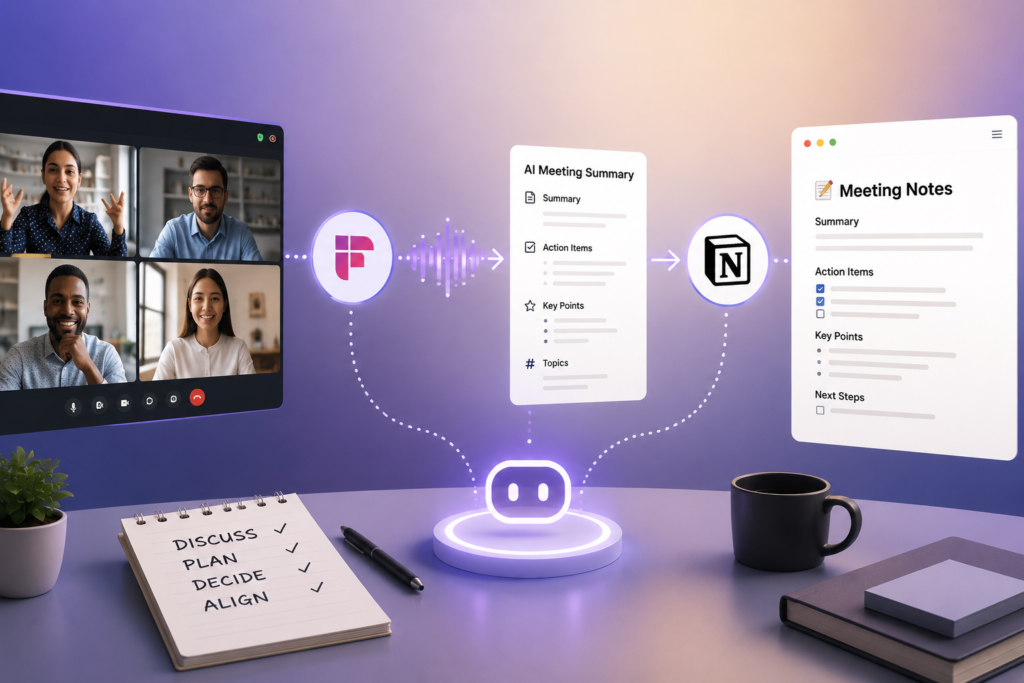
If you’re still taking notes manually, you’re paying twice for every meeting: once in the meeting (lost attention) and again after (rewriting, formatting, and chasing action items). The practical fix is AI Meeting Notes automation: let Fireflies.ai reliably capture and summarize the call, then use Notion AI to turn that output into structured, reusable records your team can actually follow.
Quick Answer (40–60 words): Use Fireflies.ai to auto-join or record meetings, generate a transcript and summary, then send the output to a Notion meeting-notes database. In Notion AI, clean up the recap, extract decisions and action items into consistent fields (owner, due date, status), and share the Notion page immediately for fast follow-through.
Why automate AI meeting notes (and why most teams still feel “stuck”)
Most teams don’t struggle because they lack a transcript. They struggle because meeting information doesn’t become work.
Typical failure patterns look like this:
- Notes steal attention: the person “taking notes” misses nuance and can’t participate fully.
- Inconsistent formats: one manager writes bullet points, another writes paragraphs, a third writes nothing. Searching becomes pointless.
- Action items disappear: tasks exist only as sentences inside a recap, not as trackable objects with owners and due dates.
- Follow-up is delayed: recaps arrive days later, when urgency is gone.
Automation matters because it creates a repeatable system: capture → summarize → structure → store → distribute. When that system is consistent, meetings become searchable business assets instead of forgotten conversations.
How the Fireflies.ai + Notion AI workflow works
This tutorial uses a simple division of labor:
- Fireflies.ai = dependable meeting capture (joins/records) + transcript + initial summaries and action items.
- Notion + Notion AI = organization and “meeting memory” (database design, cleanup, linking to projects/clients, visibility for the team).
At a high level, your workflow becomes:
- Capture: Fireflies records the meeting (auto-join via calendar settings or manual invite flows).
- Summarize: Fireflies generates transcript + summary + action items.
- Structure: Notion AI rewrites/standardizes the recap and extracts key fields.
- Store: Save everything to a Notion meeting database (not scattered pages).
- Distribute: Share the Notion recap quickly; optionally notify owners.
What this automation does well (and what it won’t do for you)
- Does well: saves admin time, standardizes documentation, improves follow-up discipline, creates searchable meeting history.
- Won’t do automatically: guarantee accuracy without review, understand sensitive context perfectly, or resolve unclear ownership unless your database forces clarity.
Business-First AI Insight: The highest ROI isn’t “having a transcript.” It’s converting meeting conversations into structured work objects—decisions you can reference and action items you can assign, track, and close. If your workflow doesn’t produce those objects reliably, adding more AI features won’t fix the underlying process.
Before you touch the tools: pick one meeting type to standardize
A common implementation mistake is trying to automate every meeting at once. Start with one meeting type that happens frequently and creates real follow-up work, such as:
- Weekly team operations meeting
- Client status call (consultants/agencies)
- Sales discovery call
- Project review / sprint planning
Why this matters: once you’ve proven your schema (summary, decisions, action items, owners, due dates), scaling is easy. If you skip standardization, you’ll just automate chaos faster.
Step-by-step: Fireflies.ai setup (capture → transcript → summary)
The goal in Fireflies is simple: reliable capture with minimal manual steps.
Step 1: Decide how Fireflies will join meetings
Most small businesses choose one of these patterns:
- Calendar-based auto-join: Fireflies joins based on connected calendar + meeting settings (best for recurring internal meetings).
- Manual invite: invite the Fireflies bot/assistant to specific meetings (best for selective capture, sensitive discussions, or client calls where you want tighter control).
Implementation tip: If you handle sensitive topics (legal, HR, healthcare operations), start with manual invite and a clear internal rule: “Only record meetings tagged ‘Recordable’ in the calendar title.” Keep it operationally simple.
Step 2: Connect Fireflies to your meeting platforms
Fireflies supports common meeting workflows (for example, Google Meet, Zoom, and Teams-related workflows). Use the official Fireflies documentation to confirm the exact setup for your environment, since platform permissions and admin controls can vary.
Step 3: Confirm what gets produced after the meeting
After a recorded meeting, Fireflies typically produces:
- Transcript (full text)
- Summary (short recap)
- Action items (tasks extracted from the discussion)
- Manual notes (if you add notes during the meeting; Fireflies can merge them into the summary)
Your goal isn’t to perfect Fireflies’ summary. Your goal is to get a consistent raw output you can reliably send to Notion for structuring.
Step 4: Standardize your meeting naming convention
Searchability is mostly a naming problem. Pick a simple standard like:
- Internal: Team – Weekly Ops – 2026-08-02
- Client work: ClientName – ProjectName – Weekly Sync – S03
- Sales: ProspectName – Discovery – Stage 1
This matters later because you’ll map meeting titles into Notion database fields (client, project, meeting type) and you want those fields to be consistent.
Step-by-step: Notion AI setup (structure → store → make it reusable)
Notion becomes your meeting memory system. The key is to store notes in a database, not random pages.
Step 1: Create a “Meeting Notes” database (the schema that makes automation valuable)
Create a Notion database (table view is easiest to start). Recommended properties:
- Meeting Title (Title)
- Date (Date)
- Meeting Type (Select: Ops / Client / Sales / Project / Other)
- Client (Relation or Select)
- Project (Relation or Select)
- Attendees (People or Text)
- Summary (Long text)
- Decisions (Long text)
- Action Items (Long text or a Relation to a Tasks database)
- Action Items Owner(s) (People or Text)
- Due Dates (Date or Text)
- Status (Select: Draft / Shared / Needs Review)
- Source Link (URL to Fireflies meeting page, if you use it)
- Transcript (Long text or a link to the transcript location)
Why these fields matter: They force consistent output. If “action items” always live in the same place, you can build dashboards, reminders, and follow-up routines later without rework.
Step 2: Build a reusable meeting note template inside the database
Inside your database, create a template page layout. Keep it standardized and short.
A practical structure:
- Top: Summary (5–8 bullets max)
- Decisions: 1–5 bullets (each should be “decision + why”)
- Action Items: bullet list in “Owner — Task — Due date” format
- Risks / Open Questions: what could block progress
- Transcript: collapsed section or link
Step 3: Use Notion AI Meeting Notes when you start inside Notion
Notion AI supports meeting notes workflows that can begin directly on a Notion page (for example, using /meet). This can be useful when you want a consistent note page ready for the meeting, even if Fireflies is doing the capture.
Practical approach: Use Notion’s meeting note page as the destination and “single source of truth,” and treat Fireflies as the capture engine that feeds it.
How to connect Fireflies to Notion (3 practical options)
The best connection method depends on how hands-off you want to be and how comfortable you are with automation tools.
Option A: Manual copy/paste (fastest to start, surprisingly effective)
Use when: you’re piloting, you run fewer meetings, or you need maximum control.
- After the meeting, open the Fireflies meeting output.
- Copy the summary + action items (and transcript link or transcript, if needed).
- Paste into a new entry in your Notion Meeting Notes database.
- Run Notion AI to rewrite into your standard format (summary/decisions/action items).
- Mark status as “Shared” once reviewed, then share the Notion page.
Trade-off: Not fully automated, but it’s often the best way to prove your schema and standards before you introduce routing complexity.
Option B: Automation platform (Make or Zapier) for routing into a Notion database
Use when: meetings are frequent, you need consistent routing, or you want notifications sent quickly after meetings.
High-level workflow pattern (implementation varies by tool and available integrations):
- Trigger: a Fireflies meeting completes (or a new summary becomes available).
- Transform: format the summary and action items into your Notion fields.
- Create: a new Notion database item (Meeting Notes) with mapped properties.
- Optional: set Status = “Needs Review” and notify a reviewer in Slack/email.
Important: The exact steps depend on the current Fireflies and Notion integration capabilities within Make/Zapier, which change over time. Validate the latest supported triggers/actions in official integration directories and documentation before you commit to a build.
Option C: “Semi-automated” confirmation step (best balance for many small businesses)
Use when: you want speed and accuracy.
Pattern:
- Automation creates a Notion entry with Status = “Draft” and drops in the summary/transcript.
- A human reviewer quickly scans for errors, fixes names/dates, and confirms action item owners.
- Then Status changes to “Shared” and the recap is distributed.
This approach reduces the risk of spreading incorrect summaries while still removing most of the admin burden.
Decision matrix: Fireflies only vs Notion only vs the combined workflow
| Setup | Best For | Ease of Use | Time to Value | Business Trade-offs |
|---|---|---|---|---|
| Fireflies only | Teams that mainly need capture + searchable transcripts | High | Fast | Great capture, but meeting knowledge can stay siloed outside your core workspace unless you standardize sharing and follow-up elsewhere. |
| Notion only | Teams already disciplined with manual notes and want a single knowledge hub | Medium | Medium | Strong organization, but meeting capture/transcription may be less robust than a dedicated meeting assistant depending on your calls and platforms. |
| Fireflies + Notion AI | Most SMB teams that want capture + structured meeting memory | Medium | Fast (once schema is set) | Best overall workflow durability; requires database design and a review habit to prevent messy automation. |
| Fireflies + Notion + Make/Zapier | Higher-volume meetings, ops-heavy teams, consultants/agencies | Medium to Advanced | Medium | Most scalable; more setup and ongoing maintenance. Worth it when routing and notifications create real operational leverage. |
Expert Verdict
Most small businesses should start with Fireflies + a well-designed Notion meeting database, using manual or semi-automated transfer at first. Add Make/Zapier only after you’ve proven your meeting schema and review process—otherwise you’ll automate inconsistency and create more cleanup work than you remove.
A practical Notion AI workflow for cleaning and structuring Fireflies output
Once Fireflies output lands in Notion (manually or automatically), your goal is to produce a short, standardized recap that drives action.
Step 1: Convert the raw summary into a consistent recap format
Use Notion AI to rewrite the summary into your template sections:
- Summary: 5–8 bullets, plain language, no fluff
- Decisions: bullets that start with a verb (Approved / Decided / Deferred)
- Action Items: each line includes Owner + Task + Due date (even if due date is “TBD”)
Why it matters: A standardized structure makes meeting notes easy to scan and makes it realistic for busy teams to actually use them.
Step 2: Extract action items into trackable fields (or a Tasks database)
If your follow-up matters, don’t leave tasks buried in text.
You have two practical approaches:
- Simple: keep action items as a standardized list in the meeting page plus “Owner(s)” and “Due Dates” properties.
- Scalable: relate action items to a separate Notion Tasks database (so tasks can appear in personal dashboards and project views).
Implementation consideration: The scalable approach takes longer to set up, but it’s the difference between “notes we store” and “work we execute.”
Step 3: Link the meeting record to the business object it belongs to
This is where Notion becomes more valuable than a standalone transcript tool.
- Client meetings link to the Client record.
- Project meetings link to the Project page.
- Sales calls link to an Opportunity or pipeline record (if you track in Notion).
Now your team can open a client or project and see the full meeting history in one place.
Best automation patterns (what usually works in real teams)
Pattern 1: Capture → Notion draft → human review → share
This is the best default for SMBs because it balances speed and trust. You reduce admin work while preventing “AI said the wrong thing” from becoming a credibility problem.
Pattern 2: “Meeting recap publishing” with fast distribution
Recaps are most useful when sent quickly. If you use an automation layer, route the Notion page link to the right channel (email or team chat) after review.
Business tip: Don’t send full transcripts to everyone. Send the Notion recap plus a transcript link for people who need details.
Pattern 3: Client session logging for consultants and agencies
If you deliver client work, add two fields to your Notion meeting database:
- Session Number (S01, S02, S03…)
- Deliverables Mentioned (text or relation)
This makes continuity easy: you can review the last recap in 60 seconds before the next call.
Common mistakes to avoid (and better approaches)
Mistake 1: Dumping raw transcripts into Notion and calling it “done”
Why it happens: transcripts feel comprehensive, so teams assume they’re useful.
Consequence: nobody reads them; action items get lost.
Better approach: Store the transcript, but treat it as a reference. Make the recap short and standardized, with decisions and action items upfront.
Mistake 2: No database schema (everything becomes unsearchable)
Why it happens: it’s faster to create pages than design a database.
Consequence: you can’t reliably answer basic questions like “What did we decide with Client X?”
Better approach: Start with a minimal database schema and evolve it only after you see what you actually use.
Mistake 3: Skipping the review step for client-facing notes
Why it happens: automation feels like it should be fully hands-off.
Consequence: one incorrect recap can damage trust or create rework.
Better approach: Use Status = “Needs Review” and require a 2-minute scan before sharing externally.
Mistake 4: Not defining ownership (tasks with no owner are not tasks)
Why it happens: teams assume “we all know who’s doing it.”
Consequence: tasks slip, and the meeting system loses credibility.
Better approach: Force “Owner + Due date” as a standard. If you don’t know the owner, the action item is: “Assign owner for X by tomorrow.”
Security and privacy checklist (meeting automation can capture sensitive data)
Meeting data often contains confidential information (pricing, employee issues, client data). Before you scale, align on basics:
- Consent and policy: define when recording is allowed and how participants are notified.
- Access control: restrict who can view meeting notes and transcripts in both tools.
- Client sensitivity: use manual recording invites for sensitive calls; avoid auto-joining everything by default.
- Data minimization: store short recaps broadly, keep transcripts more restricted.
- Review discipline: don’t auto-share externally without a confirmation step.
If you operate in regulated environments, verify both vendors’ current security documentation and your internal compliance requirements.
Use cases: where this workflow pays off for small businesses
1) Managers running recurring internal meetings
Weekly ops meetings become a living log of decisions and commitments. The practical win is fewer “Wait, what did we decide last week?” conversations.
2) Consultants and client-facing teams
A structured meeting database improves continuity across sessions and supports faster, clearer follow-up. It’s especially useful when multiple team members interact with the same client.
3) Sales discovery and account management
Automated notes reduce the burden on reps while improving next-step clarity. The key is turning action items into a consistent handoff to whoever executes (sales, ops, delivery).
4) Project reviews and delivery teams
Decisions and risks captured consistently reduce rework. Linking meeting notes to project pages makes status reporting easier.
Implementation priority: Start today → improve next → scale later
Start Today (30–60 minutes)
- Create the Notion Meeting Notes database with the core fields (Summary, Decisions, Action Items, Owners, Due dates).
- Run one meeting with Fireflies capture and manually paste the summary into Notion.
- Use Notion AI to standardize the recap format.
Improve Next (next 30 days)
- Standardize meeting naming conventions across the team.
- Add Status (Draft / Shared / Needs Review) and enforce a review step for client notes.
- Decide whether action items should link to a Tasks database.
Scale Later (once it’s working consistently)
- Add Make/Zapier routing to create Notion entries automatically.
- Add notifications to owners when action items are created or due.
- Create dashboards: “Open action items from meetings,” “Decisions by client,” and “Meetings this month.”
FAQs
Can Fireflies.ai automatically join meetings?
Yes. Fireflies can auto-join meetings based on connected calendar and meeting settings, and it can also be used through manual invite flows. Which you choose should depend on how selective you need to be, especially for sensitive or client calls.
Can I add my own notes in Fireflies during the meeting?
Yes. Fireflies supports manual notes during meetings and can merge them into the summary. This is useful when you want to capture nuance that AI might miss, such as tone, risk, or a “soft” commitment that needs careful wording.
Does Notion AI replace Fireflies as an AI meeting assistant?
Not in this workflow. Fireflies is the capture engine (recording/transcription/summaries). Notion AI is the structuring and organizing layer that turns the meeting output into a searchable knowledge base and a consistent action-item system.
Can Notion AI start meeting notes directly in Notion?
Yes. Notion AI Meeting Notes can be initiated on a Notion page (for example, using /meet). Many teams use this to standardize the note layout, even if they still rely on a dedicated tool like Fireflies for dependable transcription capture.
Do I need Make or Zapier to automate meeting notes into Notion?
Not always. You can start with a manual or semi-automated workflow and still get most of the value. Automation platforms become worthwhile when you run many meetings and want consistent routing, formatting, and notifications with minimal manual effort.
What’s the best structure for AI meeting notes in Notion?
Use a database-backed schema with consistent fields: summary, decisions, action items, owners, and due dates. Keep the recap short and predictable so it’s easy to scan later, then store the transcript as a reference rather than the primary deliverable.
How do we prevent AI summaries from missing nuance?
Use a lightweight review step before sharing, especially for client-facing notes. Also standardize what “good” looks like (short summary, explicit decisions, explicit owners). AI is great at drafting; your process is what ensures accuracy and accountability.
Is this workflow suitable for consulting and client work?
Yes—especially when your Notion meeting database includes client name, meeting type, and session number, and when action items are tracked consistently. The value comes from continuity: anyone on the team can quickly understand context before the next client call.
Conclusion: automate the meeting memory, not just the notes
Automating AI meeting notes is useful, but the real business win is bigger: you’re building a meeting memory system that turns conversations into decisions and accountable follow-up. Fireflies.ai handles capture reliably; Notion AI and a well-designed database make the output durable, searchable, and operational.
Next step: pick one meeting type, set up the Notion database schema, run the workflow for two weeks, and review one metric that matters (for example, recap turnaround time or action-item completion rate). Once the process is proven, then—and only then—add deeper automation routing to scale.
If you want help designing a meeting notes database schema, review process, and automation routing that fits how your team actually works, Intelligent AI Lab can run a practical workflow audit and map the fastest path from “notes” to “execution.”