
Canva AI Review (2026): Magic Studio Features for Small Businesses
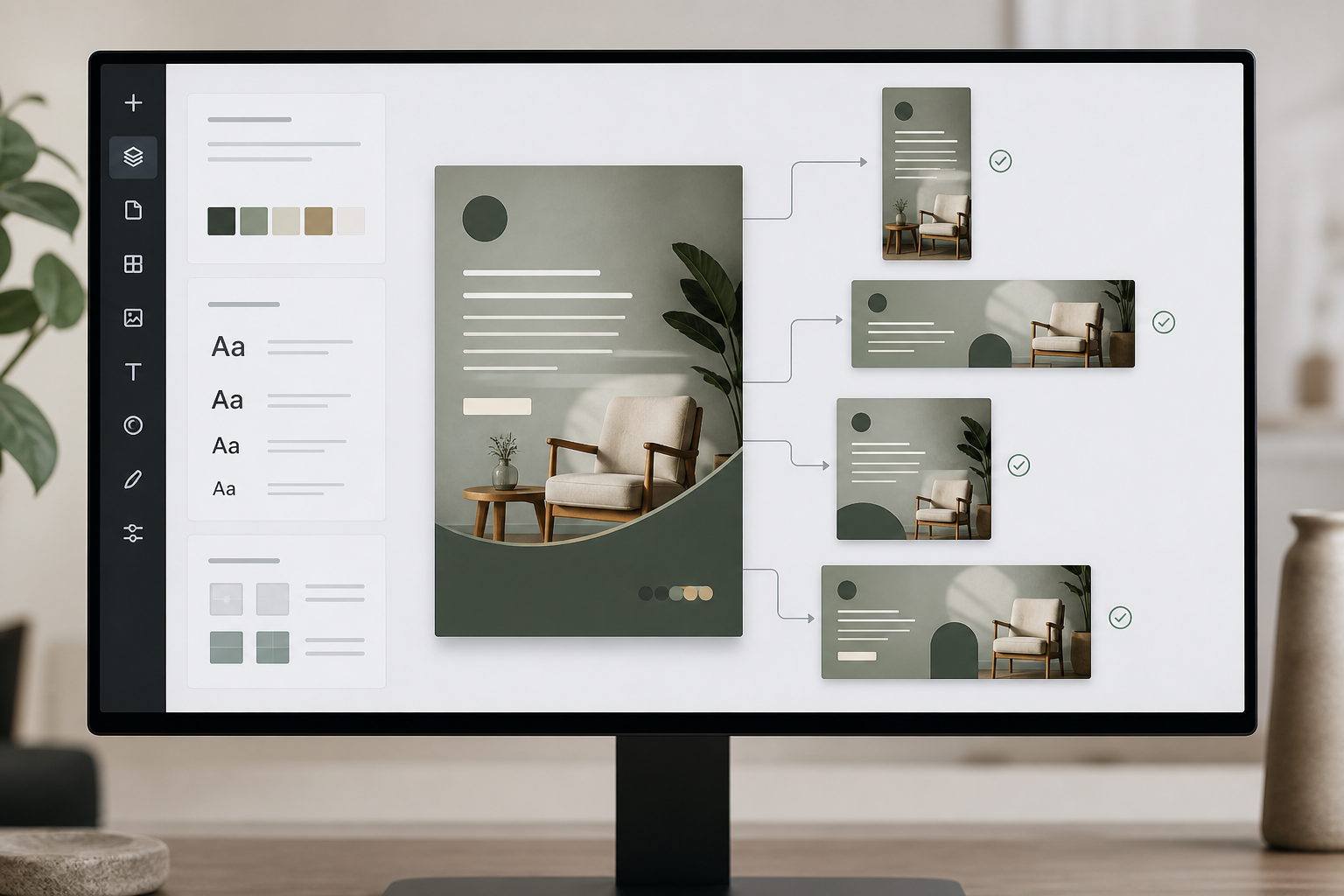
Most small businesses don’t struggle because they “can’t design.” They struggle because design becomes a bottleneck: social posts take too long, promos look inconsistent, and every campaign needs ten different sizes. This Canva AI Review explains what Canva’s AI looks like in 2026 (primarily Canva Magic Studio), which features actually help in production, and when the upgrade is worth it.
Quick Answer (40–60 words): In 2026, Canva AI is best understood as Magic Studio—a suite of AI design, writing, image editing, and repurposing tools inside Canva. It’s worth paying for when you produce recurring branded assets and need speed (first drafts, resizing, cleanup). It’s not a replacement for strategy, strong branding, or final human review.
What is Canva AI in 2026 (and what it isn’t)
In 2026, “Canva AI” isn’t one button. It’s a set of Canva AI tools grouped under (or closely associated with) Canva Magic Studio: features for generating layouts, drafting copy, creating images, removing objects, expanding backgrounds, and switching a design into multiple formats.
That distinction matters because buying decisions shouldn’t be based on whether one AI feature looks impressive. The business question is simpler:
- Will Magic Studio reduce our content and design bottlenecks enough to justify the plan we need?
- Can we standardize outputs (brand consistency, approvals, templates) so speed doesn’t create chaos?
Also important: Canva’s AI can accelerate execution, but it doesn’t replace core marketing fundamentals (positioning, offers, compliance, and quality control). Faster production can just mean “more mediocre content” if you don’t pair it with a clear workflow.
The business problem Magic Studio solves (and where it won’t help)
Small teams often try to solve content volume with more tools. The real constraint is usually workflow:
- Non-designers spend too long starting from scratch.
- Branding is inconsistent across channels (fonts, colors, tone, spacing).
- Repurposing is manual: one post becomes a story, ad, email header, and slide.
- Basic image edits require switching tools or hiring help.
- Copywriting blocks slow down launches and campaign testing.
Magic Studio is built to increase throughput—how quickly you can get to a usable first draft and then produce variations. It’s most valuable when you publish weekly (or daily), run frequent promotions, or support sales/customer communication with lightweight visuals.
Where it won’t help much:
- If you rarely create marketing assets (one-off designs a few times per year).
- If your biggest problem is strategy (unclear messaging, weak offer, no distribution plan).
- If you need advanced creative control and high-end art direction for flagship brand work.
- If you operate in a regulated environment and don’t have a review process for AI-assisted copy/visuals.
Canva Magic Studio features: what matters for small businesses
Below is the practical view: what each feature is best for, what to watch out for, and how it fits into real production.
Magic Design (fast first drafts for real business assets)
What it does: Generates editable layouts from prompts or starting assets. This is the “get me to a draft” tool for social posts, flyers, and presentations.
Why it matters: For many small businesses, blank-canvas time is the hidden cost. Magic Design can shorten the path from idea to something you can edit.
Use it when:
- You need a quick first version of recurring assets (promo posts, event flyers, webinar slides).
- You want multiple layout directions to choose from before refining.
Don’t use it when:
- You need a highly specific art-directed layout (e.g., flagship brand campaign) and you already have a strong design system.
- Your brand has strict rules and you haven’t set up Brand Kit / templates yet (you’ll spend time “fixing” the AI output).
Implementation trade-off: Magic Design can produce decent drafts quickly, but the more your brand is distinctive, the more editing you’ll likely do. The ROI comes from repeatable workflows—not from expecting perfection on the first click.
Magic Switch (the real time-saver for multi-format repurposing)
What it does: Reformats content across sizes and output types (and in some workflows, supports translation/localization). This is the feature most directly tied to “one asset becomes many.”
Why it matters: Repurposing is where small teams lose hours: resizing, reflowing text, moving elements, exporting multiple variants.
Use it when:
- A single campaign needs posts, stories, ads, banners, and slide versions.
- You want a standard “master design” workflow (build once, adapt many times).
Don’t use it when:
- Your layouts are complex and require manual art direction for each size (the switch may need cleanup anyway).
- You don’t have a QA step—because “almost right” layouts can slip into customer-facing materials.
Consultant Insight: If you only pay for one “speed” capability, pay for the one that eliminates repeated manual steps. In many small businesses, that’s repurposing—not generation.
Magic Write (useful for drafts, not authoritative final copy)
What it does: AI copywriting inside Canva: captions, outlines, slide text, short promo copy, summaries.
Why it matters: Copy is often the delay. Magic Write reduces “staring at a blank page” and keeps writing close to the design workflow.
Best-fit uses:
- Caption ideas and variations for social posts
- Headlines/subheads for flyers and ads
- Slide bullets and first-draft speaker notes
- Short product/service descriptions (then edited by a human)
Limit to plan for: It’s convenient, but you should not treat it as final legal, medical, financial, or policy language. Human review is non-negotiable for accuracy, claims, and compliance.
Dream Lab / Magic Media (custom visuals to reduce stock dependency)
What it does: AI image generation for custom concepts and campaign visuals. Sources describe this as Dream Lab or Magic Media and commonly position it as an alternative to generic stock images.
Why it matters: Stock imagery is fast but often looks generic. Custom visuals can increase relevance—if you keep them on-brand and realistic.
Use it when:
- You need thematic campaign visuals (seasonal promos, concept backgrounds, illustrative scenes).
- You want more variety for A/B testing creatives without buying many stock assets.
Don’t use it when:
- You need photorealistic accuracy with brand-critical details (products, uniforms, signage) unless you can thoroughly review and correct outputs.
- Your industry has strict rules about imagery and claims (you need governance).
Quality note: AI image outputs can vary in realism and brand fit. Plan for a selection-and-edit loop rather than a one-and-done process.
Magic Eraser (practical cleanup for product photos and ad creatives)
What it does: Removes unwanted objects from images.
Why it matters: Small teams often live with “good enough” photos because editing takes time or requires another tool. Cleanup features reduce friction for ecommerce, real estate, and service businesses.
Use it when: You need quick fixes—removing background clutter, blemishes, stray objects.
Trade-off: It’s not high-end retouching. Expect occasional artifacts and always review at export size.
Magic Expand (resizing and reframing without reshoots)
What it does: Extends image borders with AI fill—useful when a photo doesn’t fit a new aspect ratio.
Why it matters: Resizing images is a constant pain point. Expand can help you adapt visuals to banners, wide headers, or different ad formats.
Watch-outs: Edge details can be imperfect. This is usually fine for background extension, but you should avoid using imperfect expansions in places where customers will scrutinize details.
Brand Kit / Brand Voice (the unglamorous feature that drives real ROI)
What it does: Helps apply consistent colors, fonts, logos, and brand rules. Brand Voice supports tone consistency for writing workflows.
Why it matters: Magic Studio’s flashy features generate drafts. Brand workflows keep your outputs consistent across people, days, and channels—which is what customers actually notice.
Implementation reality: This requires setup and discipline. The tool can’t enforce consistency if your team ignores templates or bypasses review.
Feature-to-workflow fit (business impact table)
| Canva Magic Studio tool | Best for | Ease of use | Time to value | Small business notes |
|---|---|---|---|---|
| Magic Design | First drafts of social graphics, flyers, presentations | Low | Fast | Great starter, but expect editing for brand fit |
| Magic Switch | Repurposing across formats and sizes | Low | Fast | Often the biggest measurable time saver in ongoing campaigns |
| Magic Write | Captions, slide copy, brainstorming, summaries | Low | Fast | Use for drafts and variation; don’t treat as authoritative final text |
| Dream Lab / Magic Media | Custom campaign visuals; reducing stock dependency | Low–Moderate | Medium | Quality varies; best when you have a clear visual style and review |
| Magic Eraser | Cleanup for product photos and ad creatives | Low | Fast | Very practical; not a replacement for advanced retouching |
| Magic Expand | Reframing images for new aspect ratios | Low | Fast | Excellent for background extension; always check edges |
| Brand Kit / Brand Voice | Consistency across teams and recurring content | Moderate | Medium | Highest long-term ROI when paired with templates + approvals |
Canva AI pricing and plans (how to think about it without chasing feature lists)
Canva’s plan structure and AI usage limits can change over time, and many AI capabilities are tied to plan tier and/or usage caps (often described as credits or limited runs). So rather than quoting pricing figures (which can become outdated), here’s the decision logic most small businesses actually need.
What’s usually true across plans (verify on Canva’s official pages)
- Free plans are good for experimentation and light usage, but advanced AI usage tends to be limited.
- Paid tiers generally unlock more Magic Studio capacity, team collaboration features, and brand controls that make workflows repeatable.
- Team/business tiers become relevant when multiple people publish content and you need consistent brand application, shared templates, and smoother approvals.
One source notes a Canva Business tier launched in late 2025 as a bridge between Pro and Enterprise. Treat that as a signal that Canva is expanding options for small teams—but always confirm current tiers and included features directly with Canva.
The plan question most businesses should ask
Instead of “Which plan has the most AI?” ask:
- How many assets do we create per week (social, ads, flyers, slides, internal docs)?
- How often do we repurpose a design into multiple formats?
- How expensive is our current process (time, freelancer edits, delays)?
- Do we need brand governance (templates, Brand Kit, approvals) because multiple people publish?
If your team produces recurring content, the upgrade is often justified by workflow controls (brand consistency, repurposing, collaboration) as much as by AI generation itself.
A simple ROI check (no spreadsheet required)
Use this quick estimate:
- Weekly assets: ____
- Average minutes saved per asset using Magic Design/Switch/Eraser/Expand: ____
- Weekly time saved: assets × minutes saved ÷ 60 = ____ hours
Then compare that to the cost of either (a) staff time, (b) freelancer micro-tasks, or (c) slower campaign execution. If you’re saving several hours every week, paid access is easier to justify—especially if it also improves brand consistency.
Best Canva AI use cases for small businesses (practical workflows)
Magic Studio delivers the most value when it’s attached to a workflow you repeat. Here are five high-ROI workflows small businesses commonly run.
1) Social media batch creation (fast drafts + fast resizing)
Business goal: publish consistently without consuming your entire week.
Workflow:
- Write 10–20 post ideas (offers, education, proof, behind-the-scenes).
- Use Magic Write to draft captions and hooks (then edit for brand voice).
- Use Magic Design to generate a few layout directions.
- Apply Brand Kit and convert the best drafts into templates.
- Use Magic Switch to produce platform formats.
- QA (spelling, spacing, brand compliance), export, schedule.
Common mistake: generating 50 variations before you’ve standardized 2–3 reusable templates. Variation without a template system becomes design noise.
2) Product photo cleanup for ecommerce and promos
Business goal: make product imagery look clean and consistent without external editing tools.
Workflow:
- Upload product photo.
- Use Magic Eraser to remove distractions.
- Use Magic Expand to adapt the image to different crops (banner vs square).
- Add price/offer overlays using a standardized template.
- Export variants for ads and product pages.
Trade-off: The “AI cleanup” step is fast, but still requires a human to check edges and realism—especially for customer-facing ads.
3) Presentation drafting (sales decks, webinars, internal training)
Business goal: build slides faster without starting from scratch each time.
Workflow:
- Create a rough outline (problem → solution → proof → next step).
- Use Magic Write for first-draft slide bullets.
- Use Magic Design to generate a deck style.
- Apply Brand Kit and refine the story (clarity beats volume).
- Save the final as a template for future decks.
Where Canva is strongest: fast, good-looking, editable decks for everyday business use. If you need advanced presentation choreography or high-end motion/animation, you may still need specialized tools and design support.
4) Campaign repurposing (one master becomes many deliverables)
Business goal: run campaigns without redesigning everything for each channel.
Workflow:
- Create a master design with modular blocks (headline, offer, CTA, image area).
- Use Magic Switch to create the required sizes.
- Use Magic Write to generate short CTA variations.
- QA each format (especially text reflow and cropping).
- Track performance by variant to inform the next iteration.
Why this works: It turns Canva into a lightweight production system, not just a design tool.
5) “Custom stock” for promotions (Dream Lab / Magic Media)
Business goal: reduce reliance on generic stock photos.
Workflow:
- Define a visual style (colors, mood, backgrounds, compositions) that matches your brand.
- Generate a small set of visuals using Dream Lab / Magic Media.
- Curate only the best outputs into a shared asset folder.
- Build templates that reuse these visuals consistently.
Quality guardrail: Don’t publish AI-generated visuals at scale until you confirm they’re appropriate for your audience and don’t create confusion or unintended claims.
Canva AI pros and cons (from a small-business operations view)
Pros
- Speed to first draft: Magic Design and Magic Write reduce startup time.
- Repurposing leverage: Magic Switch can eliminate repetitive resizing work.
- Practical image edits: Magic Eraser and Magic Expand cover common “quick fix” needs.
- Integrated workflow: Writing, design, and edits happen in one workspace, reducing tool switching.
- Business consistency potential: Brand Kit/Brand Voice + templates improve repeatability.
Cons (the trade-offs you should plan for)
- Quality variability: AI drafts can be uneven and may require editing to look professional.
- Not a designer replacement: Complex brand systems and advanced creative work still benefit from skilled design.
- Governance required: Without templates and approvals, AI can amplify inconsistency (more content, more mismatch).
- Usage limits: Many AI capabilities are tied to plan limits; heavy production teams should verify caps before committing.
- Risk of “feature chasing”: Buying for AI features without mapping to workflows leads to poor ROI.
Business-First AI Insight: The highest ROI with AI design software rarely comes from “better generation.” It comes from standardizing a content production workflow—templates, brand rules, repurposing steps, and approvals—so the team can produce more without creating brand debt.
Canva AI vs alternatives (what you’re really comparing)
Most comparisons online focus on feature checklists. A better comparison is: What is the alternative to Canva AI in your business?
- Alternative A: Manual Canva workflow (no AI). Cost = your team’s time and slower iteration.
- Alternative B: Freelancers for micro-tasks (resizing, cleanup, simple posts). Cost = money + coordination delays.
- Alternative C: Other AI design tools (e.g., Adobe Express) or standalone AI image generators + separate editing tools. Cost = tool sprawl and integration friction.
- Alternative D: General AI tools (e.g., ChatGPT) for copy/ideas + manual design execution. Cost = context switching and more manual layout work.
Business-focused comparison table (not a feature dump)
| Option | Best for | Time to value | Workflow friction | Key trade-off |
|---|---|---|---|---|
| Canva Magic Studio | Small teams producing recurring branded assets | Fast | Low (integrated) | AI output still needs review; limits depend on plan |
| Manual Canva (no AI) | Low-volume design needs; teams with time | Medium | Low | More manual resizing, drafting, and editing time |
| Freelancer micro-tasks | Occasional needs; higher-stakes design polish | Medium | Medium–High | Coordination overhead; slower iteration; ongoing cost |
| Adobe Express (category peer) | Businesses already in Adobe ecosystem or evaluating alternatives | Medium | Medium | Switching costs; team training; verify AI workflow fit |
| Standalone AI image generators + editor | Teams needing heavy custom imagery beyond templates | Medium | High | More tool switching; asset governance becomes harder |
| General AI (copy/ideas) + manual design | Copy-first workflows; simple design needs | Fast | Medium | Design bottleneck remains; more context switching |
Expert verdict (clear recommendation)
Expert Verdict: For most small businesses that publish recurring marketing content, Canva Magic Studio is the best default starting point because it combines AI-assisted drafting, repurposing, and brand consistency inside one workflow. Alternative stacks become preferable only when you need advanced creative control, specialized production, or you already have a mature design system elsewhere.
Is Canva AI worth it for your business? (decision framework)
Use this scorecard. If you check 4+ boxes, paid Magic Studio access is usually easier to justify.
Canva AI is usually worth it if…
- You publish content weekly (or more).
- You regularly resize/repurpose the same design into multiple formats.
- Non-designers create assets and need fast first drafts.
- You want to reduce reliance on stock imagery for campaign creatives.
- You frequently do basic photo cleanup (product photos, promos).
- Multiple people publish and you need consistent brand application.
You should think twice if…
- You mainly need one-off designs (low volume).
- Your biggest issue is unclear messaging/strategy, not production speed.
- You can’t commit to a review step for AI-generated copy/visuals.
- Your brand requires high-end design work and strict creative direction.
Decision tree: Free vs Paid vs Alternative
- Do you create recurring branded assets weekly?
- If no: start with Free and templates; consider freelancers for occasional needs.
- If yes: go to step 2.
- Do you regularly repurpose designs into many formats?
- If yes: prioritize paid access that supports repurposing + brand controls.
- If no: go to step 3.
- Is copywriting or design-first-draft time a bottleneck?
- If yes: Magic Design + Magic Write will likely save meaningful time.
- If no: you may be fine with manual Canva + a light template library.
- Do you need advanced art direction or complex design systems?
- If yes: keep Canva for production, but consider a designer or a more advanced creative workflow for flagship work.
- If no: Canva Magic Studio is likely sufficient for day-to-day marketing assets.
Implementation guide: set up Canva AI so it actually saves time
Most teams don’t fail with Canva because of the tool. They fail because they never turn it into a system. Here’s a practical rollout that aligns with the Business-First AI Framework™ (problem → workflow → solution → oversight → outcomes → scale).
Step 1: Pick 3 workflows to automate first (don’t start with features)
- Social batch creation (highest frequency)
- Campaign repurposing (highest repetition)
- Product/photo cleanup or presentations (high time cost)
Choosing just three prevents tool sprawl and makes measurement possible.
Step 2: Build a minimal brand system inside Canva
- Set up Brand Kit: logos, colors, fonts.
- Create 5–10 templates that match your recurring needs (promo post, testimonial, event, offer, announcement).
- Write 10–20 brand-approved phrases (CTA options, disclaimers, tone examples) to guide Magic Write outputs.
Why this matters: Brand rules reduce editing time. Without them, AI speeds up drafts but increases cleanup.
Step 3: Add a simple approval and QA checklist
A lightweight checklist catches the most common AI-related issues:
- Spelling, numbers, dates, and offer terms
- Brand compliance (colors, fonts, logo placement)
- Layout sanity check after resizing (no cut-off text, awkward spacing)
- Claims/compliance review (especially healthcare, finance, legal)
Step 4: Measure outcomes (not tool usage)
Track a few operational KPIs for 30–90 days:
- Time per asset (minutes from idea to scheduled)
- Assets produced per week
- Revision count (how many back-and-forth edits)
- Turnaround time for urgent promos
- Brand compliance rate (simple pass/fail in QA)
This is how you decide if paid access is paying you back.
Common implementation mistakes (and how to avoid them)
- Mistake: Using AI before defining brand rules.
- Consequence: Fast drafts, slow cleanup.
- Better approach: Set Brand Kit + templates first, then scale AI usage.
- Mistake: Publishing AI copy without review.
- Consequence: Incorrect claims, compliance risk, brand damage.
- Better approach: Magic Write for drafts; human approves final.
- Mistake: Generating endless variations without a campaign goal.
- Consequence: Busy work disguised as productivity.
- Better approach: Generate a few options, choose one direction, template it, then repurpose.
- Mistake: Measuring “we used AI a lot” instead of business outcomes.
- Consequence: No clear ROI, unclear upgrade decision.
- Better approach: Track time saved and publishing throughput.
Prioritize your rollout: Start Today, Improve Next, Scale Later
Start Today (1–2 hours)
- Create a single “master” social post template and try Magic Design for draft variations.
- Use Magic Write to generate 10 caption drafts, then edit into your voice.
- Test Magic Switch on one asset to see how much cleanup is required.
Improve Next (next 30 days)
- Build a small template library (5–10 templates) tied to your recurring content types.
- Set up Brand Kit and a QA checklist for exports.
- Create a shared folder of approved AI-generated visuals (curated, not everything).
Scale Later (after you can measure ROI)
- Standardize campaign production: master design → repurpose formats → schedule.
- Formalize approval roles (who reviews copy, who reviews brand compliance).
- Track KPIs and decide whether you need a higher tier for team governance and capacity.
FAQs
What is Canva AI?
In 2026, Canva AI typically refers to Canva’s AI capabilities inside Magic Studio—tools for generating layouts, drafting copy, creating images, removing objects, expanding backgrounds, and repurposing designs.
Is Canva AI free?
Canva usually offers some AI features with free access for experimentation, but advanced usage is commonly limited by plan tier and usage caps. If you rely on AI features for recurring production, you’ll likely need a paid plan. Verify current limits on Canva’s official plan pages.
What does Canva Magic Studio include?
Magic Studio is commonly described as a suite that includes tools such as Magic Design, Magic Write, Magic Switch, Dream Lab / Magic Media, Magic Eraser, Magic Expand, plus brand consistency workflows like Brand Kit and Brand Voice.
Does Canva AI replace a graphic designer?
No. Canva AI can reduce time spent on repetitive, low-to-medium complexity work (drafts, resizing, simple edits). But brand strategy, advanced creative direction, and high-stakes campaign design still benefit from experienced design and human oversight.
Can Canva AI generate images?
Yes. Sources describe Dream Lab / Magic Media as Canva’s AI image-generation capability. It can help create custom campaign visuals, but quality and realism can vary—so plan on selecting, refining, and reviewing outputs before publishing.
Is Magic Write good enough for marketing copy?
Magic Write is useful for brainstorming, outlines, captions, and short promo drafts inside the design workflow. It’s best treated as a first draft tool. For authoritative, regulated, or highly specific messaging, a human should verify accuracy, tone, and compliance.
What’s the best Canva AI feature for small businesses?
For many small businesses, Magic Switch and Magic Design deliver the most practical time savings: fast drafts and fast repurposing. The “best” feature depends on your workflow volume and how often you resize or adapt assets.
How do I know if Canva AI is worth paying for?
If you create recurring branded assets weekly and regularly repurpose them across formats, the time savings from Magic Design/Switch and the consistency from Brand Kit can justify paid access within a few months. Track time per asset, revision count, and output volume for 30–90 days to confirm ROI.
Conclusion: the smartest way to use Canva AI is to treat it like a production system
Magic Studio is valuable because it turns Canva from “a design tool you open occasionally” into an AI-assisted content production workflow—draft, edit, repurpose, and publish. But the winning move isn’t generating more. It’s building repeatable templates, brand rules, and review steps so speed produces consistency, not clutter.
Next steps: Choose one recurring workflow (social batch creation or campaign repurposing), set up a minimal Brand Kit + 3 templates, and measure time saved for 30 days. If the numbers are meaningful, then upgrading isn’t a gamble—it’s an operational decision.
If you want a structured way to decide, the most useful resource is a simple Canva AI workflow checklist that maps your top design tasks to Magic Studio features, required review steps, and measurable KPIs—so you automate what matters first.