
How to Build an AI Email Assistant Using Make + ChatGPT (Step-by-Step Guide)
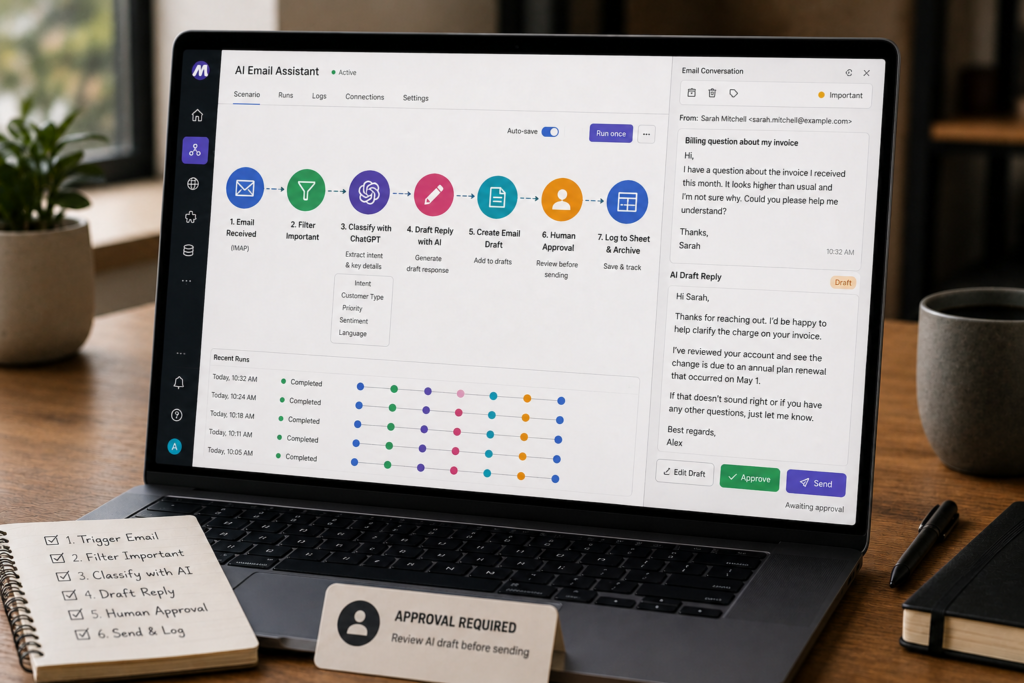
Your inbox doesn’t just “take time.” It steals attention. One minute you’re doing real work (sales, delivery, ops), the next you’re triaging five new messages, rewriting the same answers, and losing your train of thought. An AI Email Assistant can reduce that drag by classifying inbound emails and drafting replies for you—so you review and send instead of starting from a blank page.
This tutorial shows you how to build a practical, safe AI email workflow using Make + ChatGPT automation principles: receive → filter → classify → draft → (human approval) → log. You’ll start with a “draft-first” system (recommended for most small businesses), then see how to expand it later.
Quick Answer (40–60 words): To build an AI Email Assistant with Make + ChatGPT, create an email trigger (Gmail/Outlook), filter for unread messages, send the email + thread context to ChatGPT for classification and drafting, then save the result as a draft (not auto-send). Add a human approval step, logging, and testing guardrails before going live.
What an AI Email Assistant Does (and What It Shouldn’t Do)
An AI Email Assistant is not “a bot that replies to everything.” In a small business context, it’s usually a workflow that:
- Reads inbound emails (subject, sender, body, and ideally thread context)
- Classifies the email (sales lead, support request, scheduling, invoice question, spam, urgent escalation)
- Summarizes key details (optional but helpful for long threads)
- Drafts a reply in your tone using rules and templates
- Routes the outcome (save a draft, notify a teammate, log to a sheet/CRM, escalate urgent items)
What it shouldn’t do—especially at the beginning:
- Auto-send complex replies where mistakes create real cost (refunds, account changes, legal/medical topics, contract interpretation)
- Invent policy, pricing, or contract terms when the email lacks details
- “Decide” business exceptions (discounts, refunds, liability) without explicit rules
Business-First AI Framework™: Start With the Workflow, Not the Tool
Most teams approach email automation backwards: they pick a tool, then try to automate everything. A safer approach is the Business-First AI Framework™:
- Business Problem: slow replies, repetitive questions, missed follow-ups, constant context switching
- Workflow Improvement: define which emails should be drafted, routed, escalated, or ignored
- Choose the Right Solution: Make for orchestration + ChatGPT/OpenAI model for language tasks
- Implement with Human Oversight: drafts + approval gates first
- Measure Business Outcomes: response time, draft acceptance, time saved, error rate
- Standardize and Scale: templates, edge-case rules, routing to CRM/Slack
Business-First AI Insight: The biggest ROI usually comes from automating triage + drafting, not auto-sending. When you reduce the cost of starting each reply, your team moves faster while still staying in control of brand voice, policy, and risk.
Who This Tutorial Is For (Best-Fit Use Cases)
This guide is most useful if you have a manageable-but-repetitive inbox, such as:
- Sales inquiries: “How much?”, “Can we book a call?”, “Do you serve my area?”
- Support questions: recurring “how-to” issues, basic troubleshooting, status updates
- Scheduling: back-and-forth coordination (drafting proposed times, requesting missing details)
- Operations/admin: invoice questions, document requests, onboarding steps
If your inbox is highly regulated or high-risk (healthcare, legal advice, sensitive finance), you can still use drafting—but you should be stricter about what gets drafted, what gets escalated, and what never touches AI.
What You Need Before You Start
To build an AI Email Assistant with Make, you’ll need:
- Make.com account with access to email modules and an OpenAI/ChatGPT integration path
- Email account: Gmail or Outlook are the most common starting points (Make supports broader email integrations too)
- Access to an OpenAI/ChatGPT-compatible model via Make’s modules/connectors (verify current options inside Make, since plan and module availability can change)
- A defined first use case (one narrow category of emails you want to handle first)
- Basic reply templates (even rough ones) for common scenarios
- A logging destination (optional but strongly recommended): Google Sheets/Airtable/Notion table—anything you can review weekly
Decide Your “Safety Mode”: Drafts vs Auto-Send
Before you build anything, decide how much autonomy you’re giving the workflow.
| Mode | Best For | Risk Level | Operational Reality | Recommendation |
|---|---|---|---|---|
| Draft-only | Most small businesses | Low | AI saves writing time, human stays accountable | Start here |
| Approve then send | Teams with clear routing & queue | Medium | Faster than drafts if approval is built into workflow | Good phase 2 |
| Auto-send | Very narrow, low-stakes FAQs | High | Requires tight rules, testing, and monitoring | Avoid initially |
| Escalate-only | Urgent/critical inboxes | Low | AI detects urgency and routes to humans | Good companion workflow |
Architecture: The Simple, Reliable AI Email Workflow
Here’s the core design that works for most teams without overcomplicating things:
- Trigger: Watch inbox for new unread emails (or a specific label/folder)
- Pre-filter: Ignore newsletters, receipts, no-reply senders, and spammy patterns
- Extract context: Subject, sender, body, and (if possible) thread history
- AI step #1 (classification): Decide email type + urgency + recommended handling
- AI step #2 (draft): Generate reply draft using templates + tone rules
- Action: Create draft (or create draft + notify reviewer)
- Log: Save classification, summary, and the drafted reply to a sheet for review
- Mark as processed: Apply label or mark read to prevent duplicates
Step-by-Step: Build an AI Email Assistant in Make (Draft-First Version)
This is the tutorial build. It’s intentionally “boring” in a good way: fewer moving parts, fewer surprises, easier to maintain.
Step 1: Create the Scenario and Add the Email Trigger
In Make, create a new scenario and add an email trigger module (Gmail or Outlook, depending on your stack).
- Choose a trigger like “watch emails” / “new email” (exact naming varies by connector)
- Start with a narrow scope, such as:
- Only a specific inbox (e.g., support@, sales@)
- Or only a label/folder (e.g., “ToDraft”)
- Or only unread emails
Why this matters: Beginners often build a scenario that re-processes the same messages repeatedly. Unread filters (plus a “processed” label) are your first guardrail against duplicate drafting or accidental repeat replies.
Step 2: Add a Filter to Reduce Noise (Prevent Bad Inputs)
Add a Make filter immediately after the trigger to exclude messages that should never go to AI drafting.
Common filters:
- Sender contains no-reply
- Subject contains newsletter, receipt, unsubscribe (adjust to your reality)
- Message is not in the intended folder/label
- Message is not unread (if your trigger doesn’t already enforce it)
Consultant Insight: Your AI output quality is constrained by your input quality. Filtering feels “non-AI,” but it’s one of the highest leverage steps in email automation because it prevents your assistant from drafting replies to things it shouldn’t touch.
Step 3: Extract the Email Content and (If Possible) Thread Context
Map the fields you will send to ChatGPT. At minimum:
- From: sender name + email
- Subject
- Body (plain text preferred)
- Date/time received
If your email connector supports it, also pull:
- Thread history or the last N messages in the thread
- Any labels/folder name (useful for routing)
Why thread context matters: Without context, AI drafts tend to repeat questions, miss prior commitments, or respond as if it’s the first message. Even partial thread history can reduce those mistakes.
Step 4: Add AI Classification (Route Before You Draft)
Next, add a ChatGPT/OpenAI step that classifies the inbound email. This is where many tutorials skip ahead—and that’s a mistake. Classification lets you apply different templates and safety rules depending on the email type.
Goal of classification: produce structured output you can reliably route in Make.
Recommended fields to classify:
- category: sales_lead, support_request, scheduling, billing, partnership, spam, other
- urgency: low, normal, high
- recommended_action: draft_reply, escalate_to_human, ignore
- summary: 1–3 sentences
- missing_info: what you need from the sender to proceed
Implementation tip: Ask the model to return JSON. Then you can parse it or map it cleanly.
Step 5: Add Draft Generation (Use Templates + Guardrails)
After classification, add a second AI step to draft the reply. You can do this as:
- Option A: One drafting prompt that takes category + email content and generates the draft
- Option B: Category-specific templates (recommended as you mature)
For a first version, Option A is faster. But you should still include:
- Your brand tone (friendly, concise, professional, etc.)
- Boundaries (what it must not promise or decide)
- Escalation triggers (refunds, cancellations, legal threats, sensitive personal data)
- A requirement to ask clarifying questions if info is missing
Step 6: Create a Draft in Gmail/Outlook (Don’t Auto-Send Yet)
Now connect the output of the drafting step to your email provider module and create a draft:
- Set To as the original sender
- Set Subject as “Re: {original subject}”
- Set Body to the AI-generated reply
- If possible, ensure it stays in the same thread (provider-dependent)
Why drafts are the safest first workflow: You get most of the time savings (writing) while avoiding the biggest failure mode (sending a wrong email).
Step 7: Mark the Email as Processed (Prevent Duplicate Drafts)
Add a final step to prevent re-processing:
- Mark as read and/or
- Apply a label like AI_Drafted
Using a label is especially useful because it gives you an audit trail inside the inbox.
Step 8 (Strongly Recommended): Log Everything to a Sheet
Add a Google Sheets (or similar) module to log:
- Timestamp
- Message ID / thread ID
- Sender
- Category + urgency
- Summary
- Draft text
- A “review outcome” column you can fill later (accepted / edited / rejected)
Why logging matters: Without logs, you can’t systematically improve prompts or quantify time savings. With logs, you can review 20 drafts weekly and continuously tighten the system.
Prompt Blueprint: A Practical System Prompt for an AI Email Assistant
Your prompt is not just “write a reply.” It’s your policy, tone guide, and safety rail. A good prompt reduces hallucinations and over-confident responses.
A Simple Prompt Formula That Works
- Role: what the assistant is (and is not)
- Context: the email + thread summary
- Rules: what must be included, what must never be done
- Tone: style guidelines
- Output format: exact structure (draft only, plus optional bullets)
Example: System Rules to Include
- Do not claim actions were completed unless explicitly stated (no “I’ve processed your refund”)
- Do not provide legal/medical advice
- If pricing, contract terms, or policy details are missing, ask clarifying questions
- Keep the reply concise; use bullets when listing requirements
- If the email is angry/escalated, keep tone calm and propose next steps
Business Tip: The “best prompt” is usually the one that encodes your existing SOP. If your team can’t explain how you want emails handled, the AI won’t magically invent a consistent process. Write the SOP first, then prompt it.
Testing and Debugging: How to Go Live Without Breaking Trust
Testing is where most no-code email automations fail—not because the tools don’t work, but because teams skip the operational discipline.
Testing Plan (Practical and Safe)
- Start with historical emails: copy/paste old messages into tests (remove sensitive data if needed)
- Run the scenario in manual mode: inspect every module’s input/output
- Validate classification accuracy: are “billing” emails being labeled “support”?
- Validate draft behavior: does it ask clarifying questions when info is missing?
- Check edge cases: angry emails, multi-question emails, attachments referenced, short “?” emails
- Turn on draft-only in production: review drafts daily for the first week
- Tune prompts weekly: based on your log outcomes (accepted/edited/rejected)
Edge Cases You Should Document Early
- Refund requests
- Cancellation threats
- Legal language (“my attorney”, “breach”, “lawsuit”)
- Medical or safety issues (if relevant)
- Password/account access requests
- Discount negotiations
- Vendor invoices and payment confirmations
Most of these should trigger escalate_to_human rather than drafting a confident reply.
Common Mistakes (and How to Avoid Them)
Mistake 1: Starting With Auto-Send
Why it happens: auto-send feels like the “real” automation win.
What it costs: one bad email can create churn, refunds, compliance issues, or reputational damage.
Better approach: draft-first until you have stable categories, templates, and a measurable low error rate.
Mistake 2: No Unread/Processed Controls (Duplicate Drafts or Replies)
Why it happens: triggers fire repeatedly; scenarios rerun; inbox states change.
Better approach: filter for unread + apply a “processed” label or mark read at the end.
Mistake 3: Weak Prompts That Allow Over-Answering
Why it happens: generic prompts invite the model to “be helpful” beyond your policy.
Better approach: include explicit boundaries, and require clarifying questions when details are missing.
Mistake 4: Automating Everything Instead of One Narrow Use Case
Why it happens: tool excitement leads to tool sprawl and brittle flows.
Better approach: pick one category (e.g., scheduling) and get it to a stable, reviewable workflow before expanding.
When to Use Make Scenarios vs Make AI Agents
Make can support both standard scenarios and more agent-like flows. The practical decision is about complexity and maintenance—not novelty.
| Approach | Use It When | Avoid It When | Trade-off |
|---|---|---|---|
| Linear Make scenario | Your workflow is predictable: trigger → classify → draft → draft/save/log | You need multi-tool decisions with many branches and dynamic tool selection | Simple, easier to maintain; less flexible for complex branching |
| Make AI Agent approach | You need more complex decisioning across tools (email + CRM + docs + notifications) | You’re still proving the core use case or don’t have time to test thoroughly | More powerful, but more setup/testing and more ways to fail |
Expert Verdict: Most small businesses should start with a linear Make scenario for an AI Email Assistant because it’s easier to debug, easier to train teammates on, and less fragile. Move toward agent-style complexity only after you’ve proven your categories, prompts, and review process.
How to Measure Success (KPIs That Actually Matter)
To justify and improve your email automation, track outcomes that map to business value.
- Average first-response time: does the assistant help you reply faster?
- Draft volume: how many emails get drafts per day/week?
- Draft acceptance rate: what % are sent with no edits?
- Minutes saved per week: estimate based on drafts accepted and average writing time saved
- Error rate / escalation rate: how often did it misclassify or draft something risky?
- Lead conversion proxy: for sales inboxes, are more inquiries getting timely follow-up?
Even without fancy analytics, your logging sheet plus a 15-minute weekly review can drive meaningful improvements.
Use Cases by Business Type (Practical Starting Points)
Professional Services (consultants, agencies, firms)
- Draft responses to inbound inquiries and qualification questions
- Draft scheduling replies with a standard intake checklist
- Summarize long threads before handoff to delivery
Retail / Ecommerce
- Classify: order status vs returns vs product questions
- Draft replies that request missing info (order number, email used, delivery address confirmation)
- Escalate refund exceptions to humans
Accounting / Finance Ops (non-regulated drafting only)
- Draft document request emails and deadline reminders
- Classify invoice questions vs onboarding vs support
- Escalate anything involving account changes or sensitive data
Healthcare / Legal (strict human review)
- Use AI mainly for triage + drafting neutral acknowledgments
- Route to the right staff member with a summary
- Avoid substantive advice; keep replies administrative
Implementation Priority: Start Today → Improve Next → Scale Later
Start Today (low effort, high impact)
- Choose one use case (e.g., scheduling emails)
- Build: unread trigger → classification → draft → label processed
- Use draft-only mode
Improve Next (next 30 days)
- Add logging to a sheet
- Add category-specific templates for your top 3 email types
- Add escalation rules for risky topics
- Review and tune prompts weekly using real outcomes
Scale Later (after stability)
- Route qualified leads to your CRM
- Notify Slack/Teams for urgent messages
- Build a second scenario for escalation-only
- Consider Make AI Agents only when you truly need multi-tool branching
Frequently Asked Questions (AI Email Assistant)
What is an AI Email Assistant?
An AI Email Assistant is a workflow that uses an AI model to classify, summarize, and draft email replies. In most small businesses, the most practical version creates drafts for human review rather than auto-sending messages.
Can ChatGPT reply to emails automatically?
Technically yes, but auto-sending is risky. A safer approach is to have ChatGPT generate a draft, then require a human to review and send—especially for billing, refunds, sensitive data, or anything that could create liability.
Is Make good for email automation?
Yes. Make is well suited to email automation because it can connect inbox triggers to AI steps and then route results to drafts, labels, spreadsheets, notifications, or other business tools. Just keep the first workflow simple to avoid maintenance headaches.
Should I auto-send AI replies or save drafts?
For most small businesses, start with drafts. Drafts deliver most of the time savings while keeping accountability and quality control with your team. Auto-send can make sense only for narrow, low-stakes FAQs with strong guardrails and monitoring.
How do I stop duplicate processing or duplicate replies?
Use unread filters at the trigger stage, and then mark the email as processed at the end (mark as read and/or apply a “processed” label). This reduces the chance the scenario re-runs on the same message.
What should I include in the prompt for an AI email workflow?
Include tone guidelines, boundaries (what it must not do), escalation rules for sensitive topics, and a requirement to ask clarifying questions when information is missing. Also define the output format so results are consistent and easy to map in Make.
How do I test an AI email assistant safely?
Test with historical emails first, run the Make scenario manually, verify classification and draft quality, and keep the first production version in draft-only mode. Add logging so you can review outcomes and tune prompts based on real inbox patterns.
How do I measure whether this email automation is worth it?
Track first-response time, number of emails drafted, draft acceptance rate (sent with no edits), estimated minutes saved per week, and error/escalation rates. For sales inboxes, also watch whether more leads receive timely follow-ups.
Conclusion: The Real Win Is Inbox Operations, Not “AI Replies”
The most effective AI Email Assistant isn’t the one that sends the most emails automatically. It’s the one that turns inbox work into a controlled, measurable workflow: triage, draft, review, and route—consistently. When you treat email like an operational system (not a personal habit), you get faster responses, fewer missed opportunities, and less daily context switching.
Next step: pick one narrow email category, build the draft-first Make scenario, and log outcomes for two weeks. Once the workflow is stable, then decide what to scale—more categories, better templates, CRM routing, or escalation automations.
If you want a practical starting point: build the draft-only version first. It’s the highest-confidence path to real time savings without risking customer trust.